Learn how to import subscriber lists into your account.
Save Your List
To upload a new list, you first need your list in CSV format.
- Create a list that looks something like this:
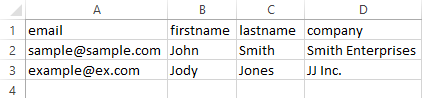
Tip: To save yourself time later on, name your header row with the exact same names as the custom fields you be importing the data into. "Email," "firstname," and "lastname" are default custom fields in your account. - Save the file in CSV Format
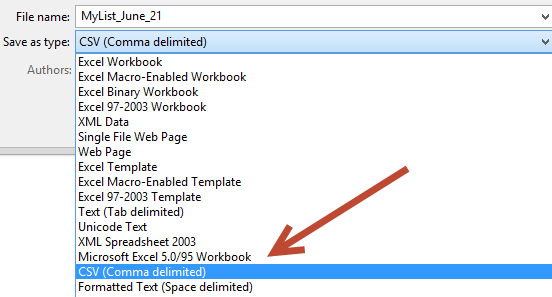
Tip: There are restricted characters that cannot be used in a filename, which are: - < (less than)
- > (greater than)
- : (colon)
- " (double quote)
- / (forward slash)
- \ (backslash)
- | (vertical bar or pipe)
- ? (question mark)
- * (asterisk)
Import the List
Step 1
- Open Subscribers & Lists and click Import
- Select Import into a New List to upload subscriber data into a new list or Import into Existing List to upload subscriber data into an already existing list
Step 2
- If you clicked Import into a New List, start by entering a name for the new list
- If you clicked Import into an Existing List, select the list you would like to import into by clicking the checkbox next to the list.
- Select the desired options:
- List Folder: Select the folder location for the new list
- Import file delimiter: Choose whether your list values are separated by commas(.CSV), spaces, or tabs
- Subscriber Conflicts: Decide what to do when subscribers are already in the database.
- Add new subscribers and update existing subscribers: Any information in the file will be imported.
- Add new subscribers but do NOT update existing subscribers: This will ignore any data for existing subscribers. This is great if you want to ensure you are not modifying with data that may be out of date, such as a signup list when subscribers can update their own information via the profile center.
- Update existing subscribers only. Do NOT add subscribers: This will only update subscribers and will ignore any subscribers not in Critical Impact. This is useful when you are importing a list from another account but aren't sure if the subscribers have opted-in to this list.
- Add new subscribers, update existing subscribers, and ignore empty subscriber fields in file: This is a unique use case. Use this when you want to update all existing information and ignore empty fields. Otherwise, empty fields would be updated to an empty/NULL value.
-
- To upload your saved list, click Upload from File (you'll also have the option to copy and paste the list)
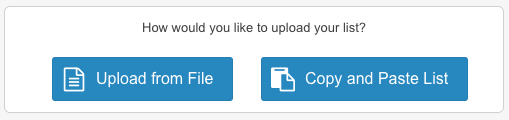
- To upload your saved list, click Upload from File (you'll also have the option to copy and paste the list)
- Click Next
Step 3
This screen allows you to match the columns from your import file with custom fields in the email system. It will automatically map the column if the header row is an exact match for a custom field.
- For each column, select the custom field from the drop down where you would like to insert that column's information
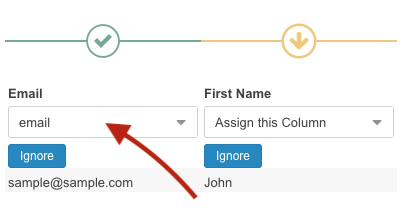
Note: If you would like to add a new custom field, click Add New Custom Field. Enter the name and click Save. This new custom field should now be an option in the drop down menus. - Click Ignore if you do not want to import the column's data
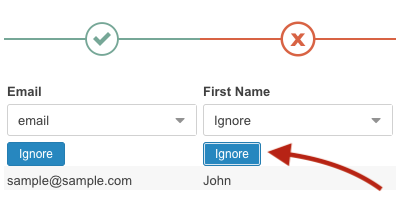
- Once all the columns are uniquely matched with a Custom Field or marked to ignore, click Done
Step 4
Describe the origin of the list to comply with SPAM regulations. Click Submit.
Import FAQ
Q: What if there are duplicates on my list?
A: The import will automatically clean duplicates from the list.
Q: Will a confirmation message be sent to people on the list?
A: No confirmation messages will be sent to your list, because we trust that you've already received permission.
Q: Why were so many of the email addresses marked as invalid?
A:The import routine follows industry standard practices and we do not alter the data you send us in any way. If you import a list which includes a "space" character as part of the email address column, the system will treat it as an invalid email address.
Q: I clicked "Add a New List" by accident. How do I go back and Import into an Existing List?
A: Simply click Import from the menu again to refresh the page. Then select the correct option.
Q: If a send is scheduled, then a list is imported to update contacts on the send to list, will the system send to the updated list?
A: Yes, lists are pulled at the time the email is actually sent. So the estimated send size can change if new people are added to the list, subscribers unsubscribe, etc.
Now that you have a list of subscribers, learn how to create an email message by clicking the Next button below: